Tip - Clear your cache
Frequent changes to the web site my cause your browser to get out of sync. This is not usually a problem but may occur when the site is under development or getting fixed in some way.
To improve performance your browser saves some website information on your local drive, a cache. For example, if there is a styling error, and we fix it, you may not see the change. So, if something isn’t quite right, you need to clear the browser cache. It is really easy. Here are some instructions for Edge and Chrome. Firefox and Safari should be similar.
In most browsers on PC and Mac, you can perform a simple action to force a hard refresh.
Press Ctrl-Shift-R (Command(⌘)-Shift-R on mac) or Hold down the Shift key on your keyboard and click on the reload icon on your browser’s toolbar. (Edge says ‘Refresh’, Chrome says ‘Reload’).
If this simple technique doesn’t seem to work, you can do this slightly more complicated method to thoroughly clean out your cache..
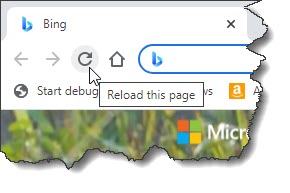
- Press the F12 key. This brings up the “DevTools” window. You won’t need to use this window so move it aside or minimize it if it is in the way. But don’t close it. It might appear as part of your browser window (docked) but that’s ok, just ignore it.
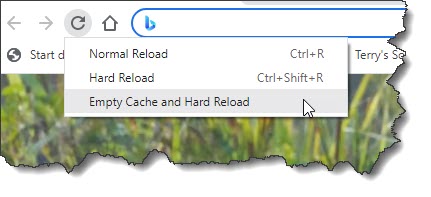
- Click on the refresh (reload) icon, but hold the mouse button down for a second or two. Or you can click the right mouse button.
- A little popup menu appears. Select “Empty cash and hard refresh”
- You can now close the “DevTools” window by pressing F12 again.
By the way, this method does not affect your browsing history, cookies or other things the browser stashes away.